Open the zoom app and click the blue join a meeting button.
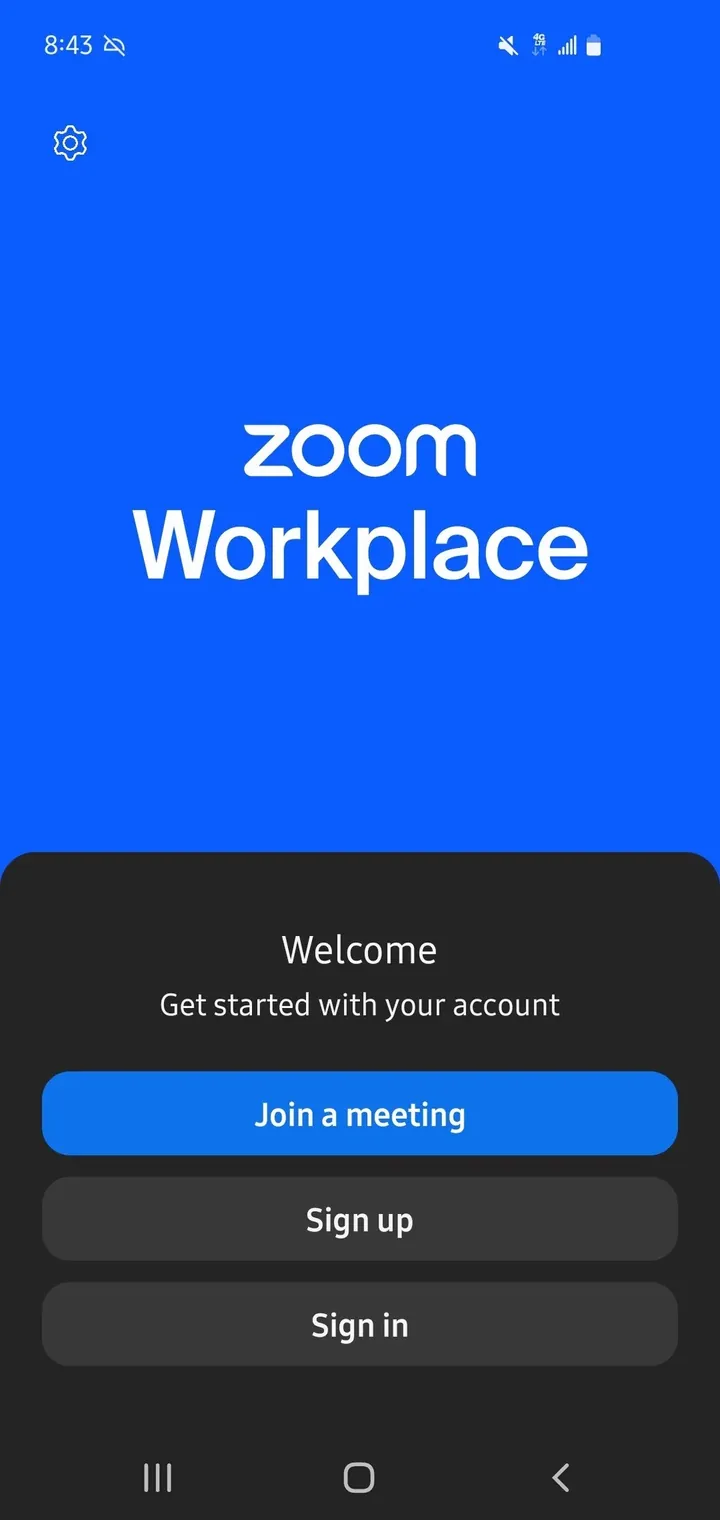
Look for the Zoom Workplace app on your phone or computer.
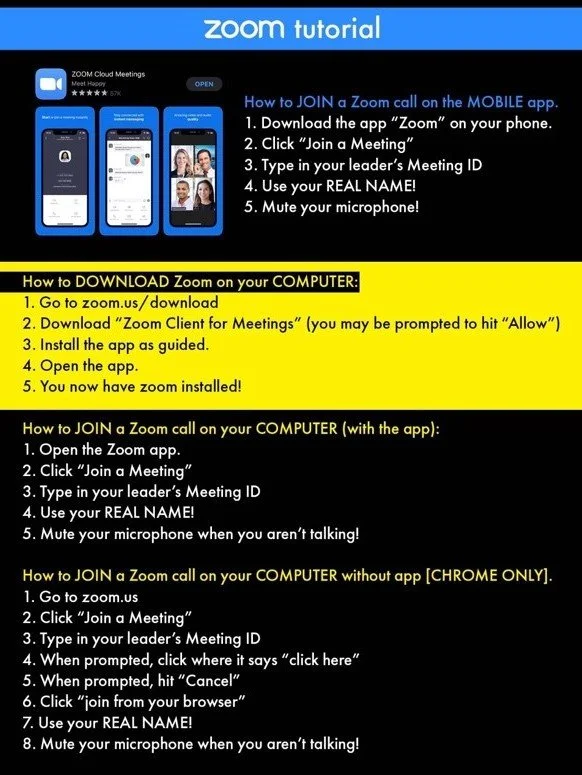
Open the zoom app and click the blue join a meeting button.
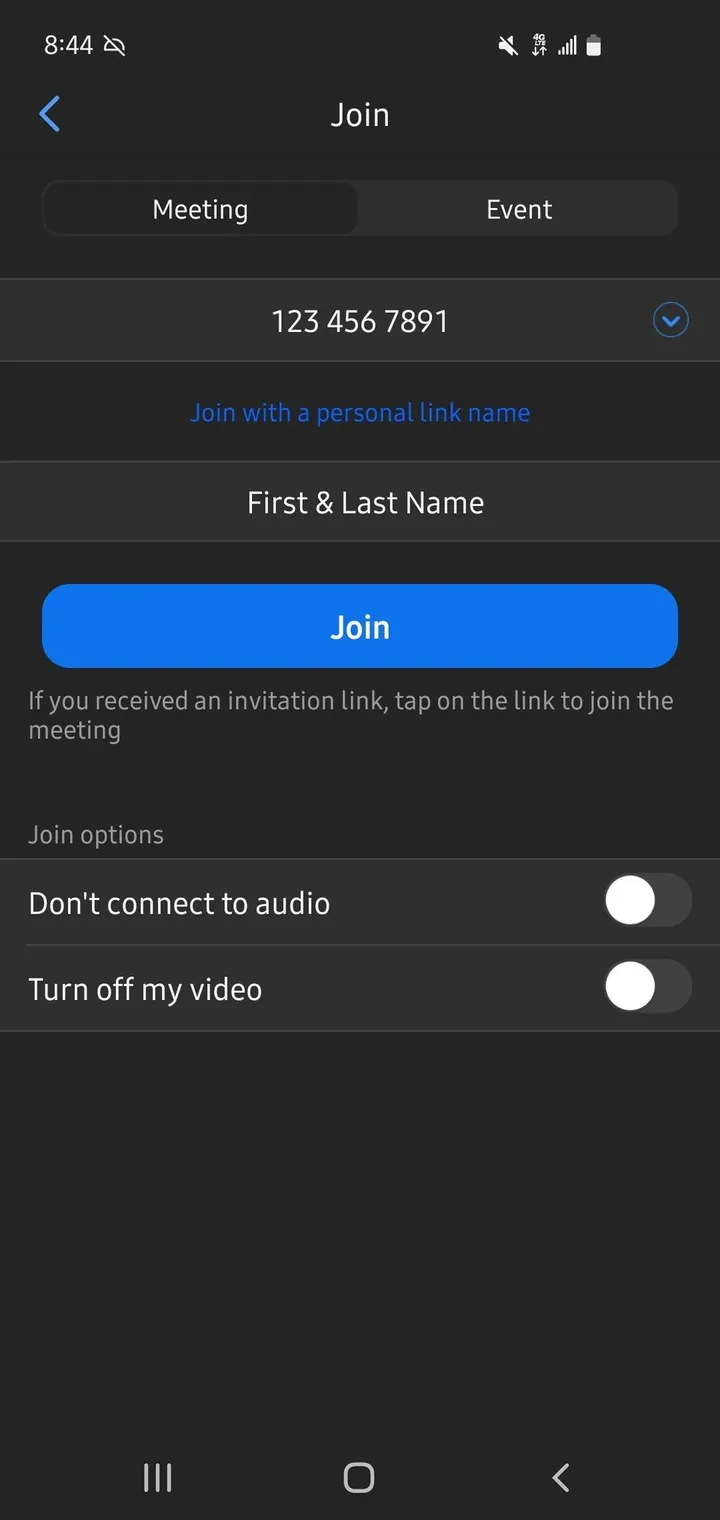
Enter the meeting ID for the group you want and enter your first and last name. Keep your video on.
If your need to have your video off at any point you can use the chat to communicate why you are not on camera. To get credit for the class, group staff need to hear from you verbally or in the chat at the start of class and end of class. Participation throughout the class is encouraged so we know you are engaged. If staff do not hear from you while on the call, you will be marked as a volunteer for the session and credit will not be granted.
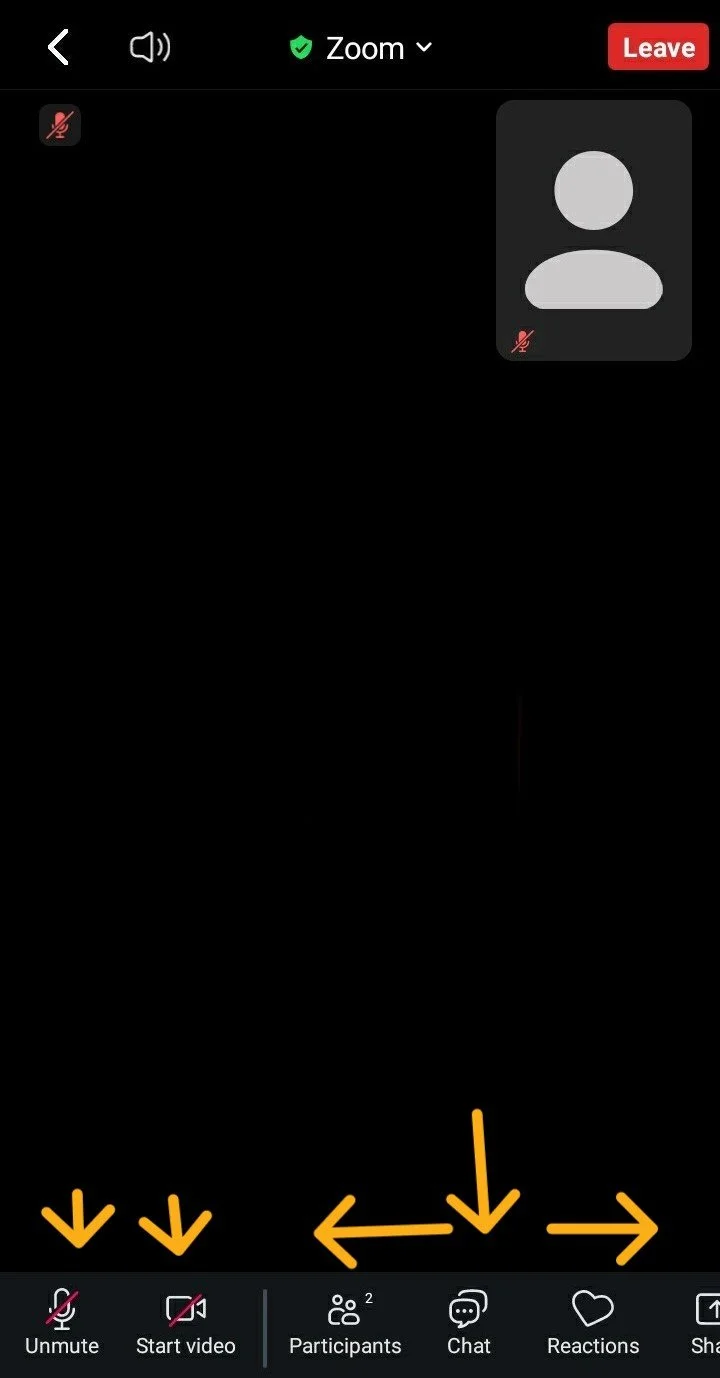
Zoom Controls <-> Arrows pointing to mute/unmute, video on/off & chat. Swipe on your screen left & right to see more options or navigate to different views of participant squares, speaker, or PowerPoint/video being shown.
Click the 3 dots to show more features. Raise hand is located in here. Photo also shows leave button in bottom right corner.
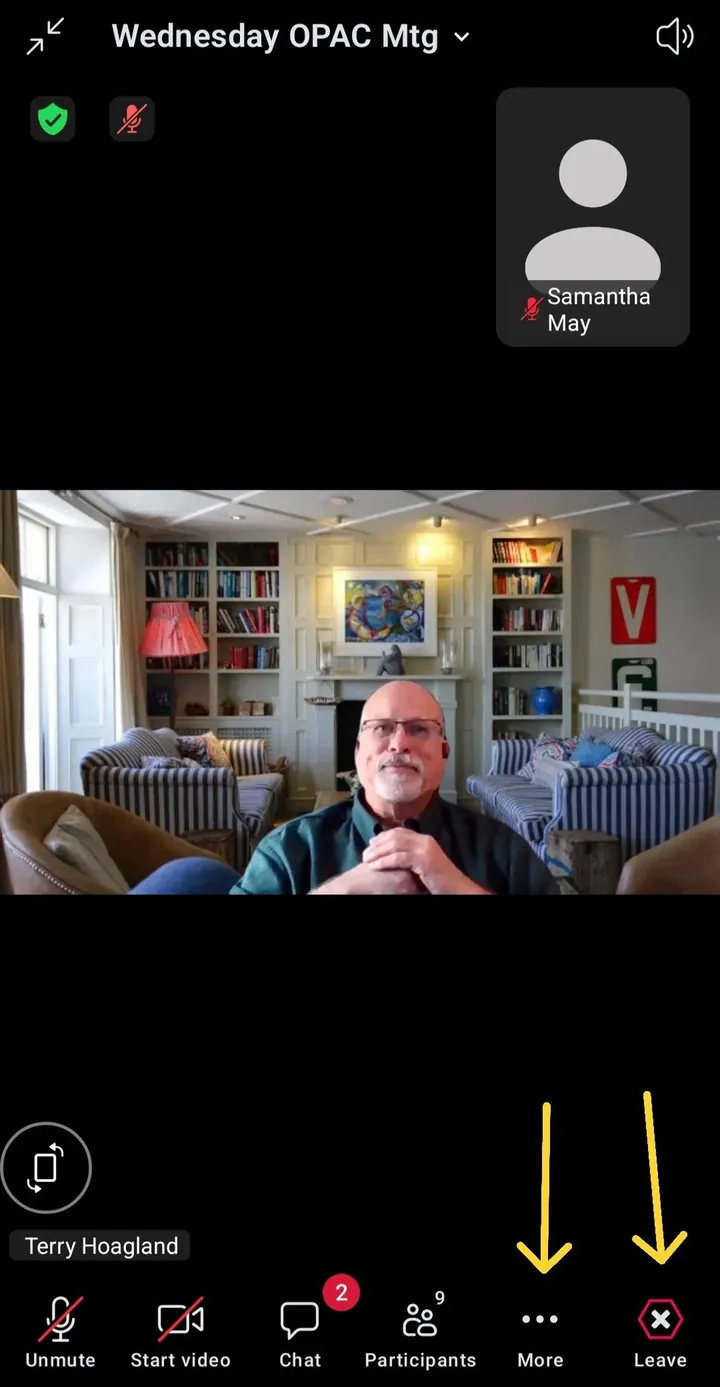
After clicking the "more ..." button you can use the raise hand button or "reactions."

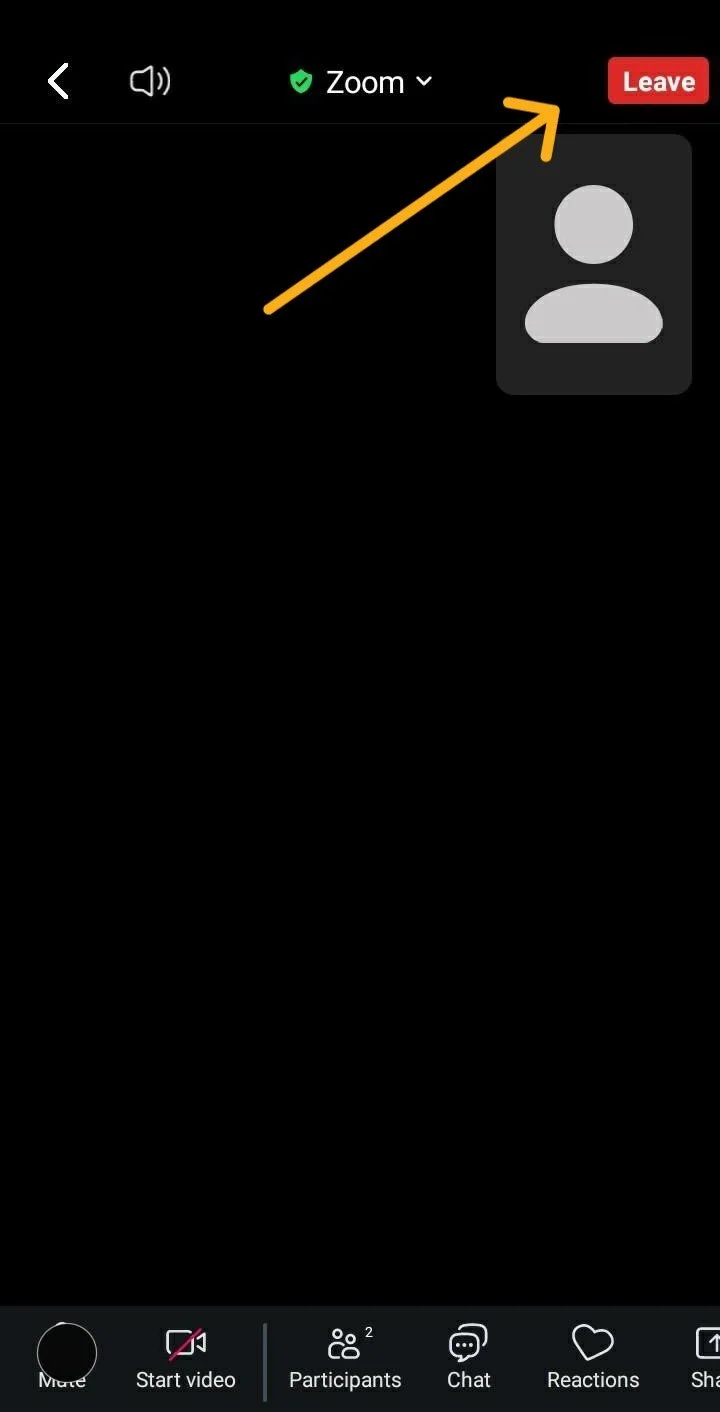
To leave a group, click the "leave" button located at the top right of the app. Some phones show this at the bottom right.
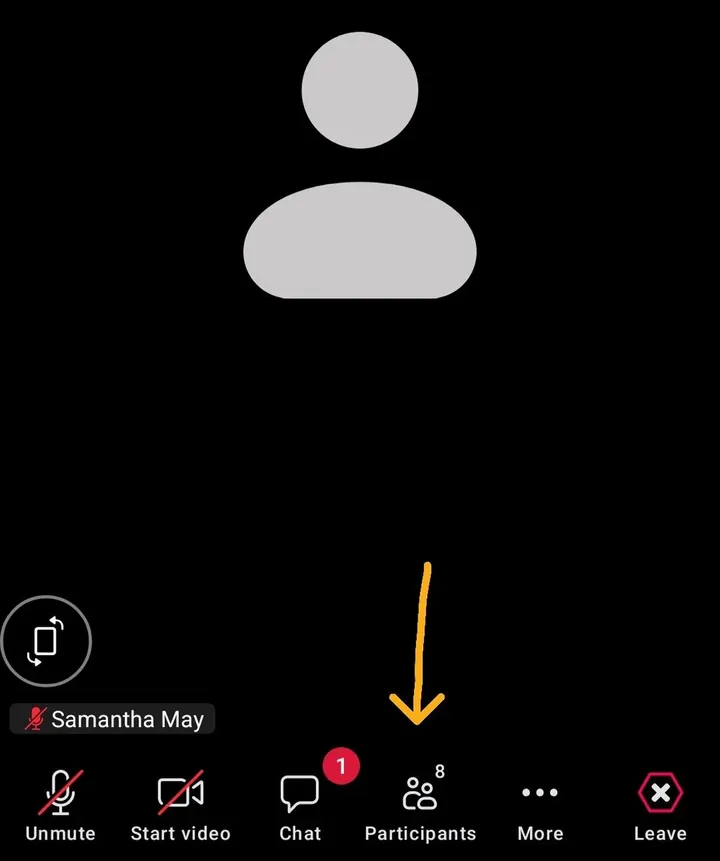
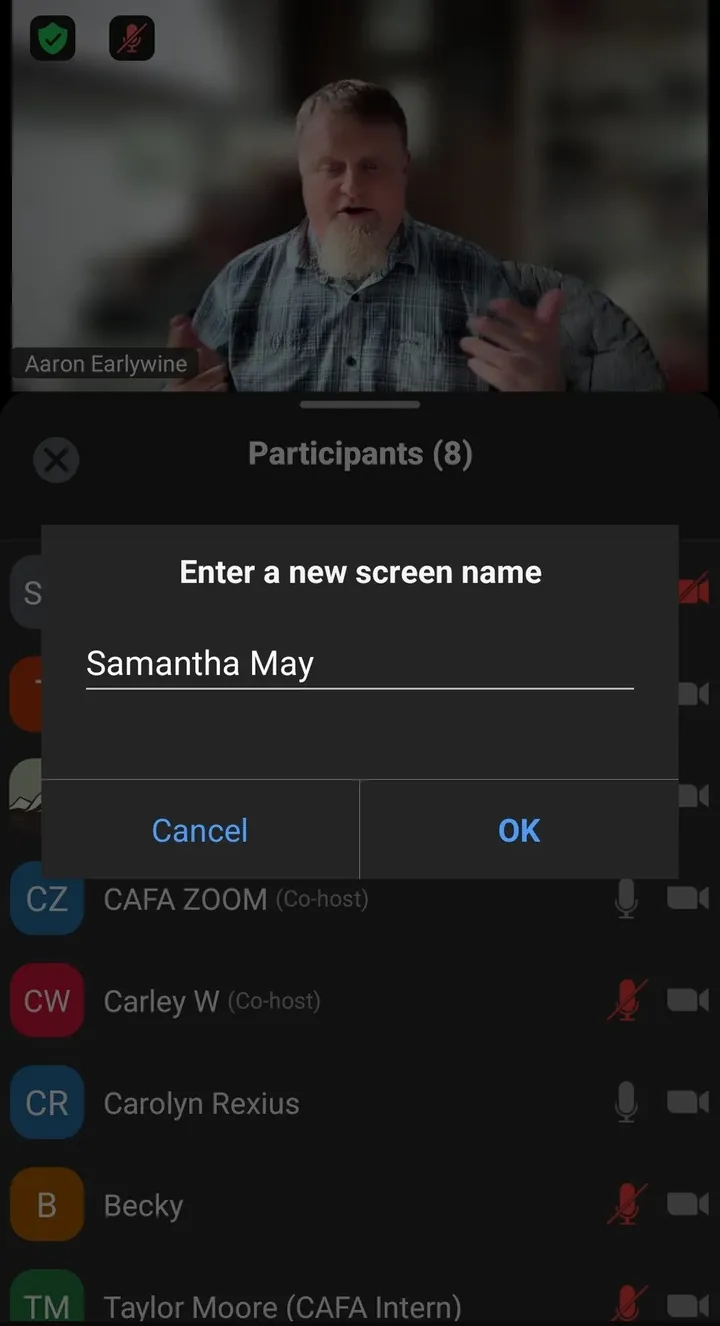
To rename yourself when in a meeting, click participants.
From here, you can raise your hand or rename yourself to get credit.
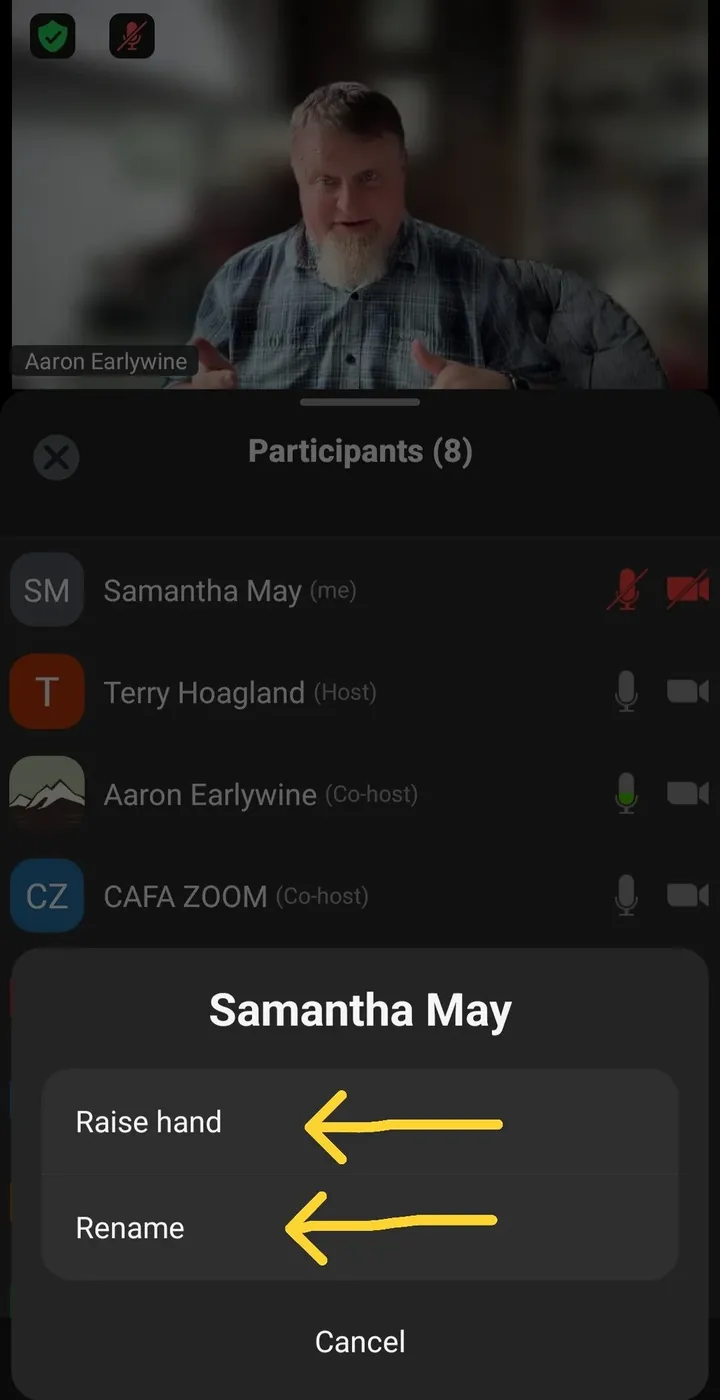
Enter your first & last name for credit.
Enjoy group!
Reach out to Samantha if you would like a texted list of the current meeting IDs 541-579-6265.
Text SamanthaZoom on Your Phone: Joining with Zoom iPhone App (2021) Watch on YouTube (opens in a new tab)